Session history
History keeps a record of every service you've run. Open it from the top bar or press Ctrl/Cmd+4.
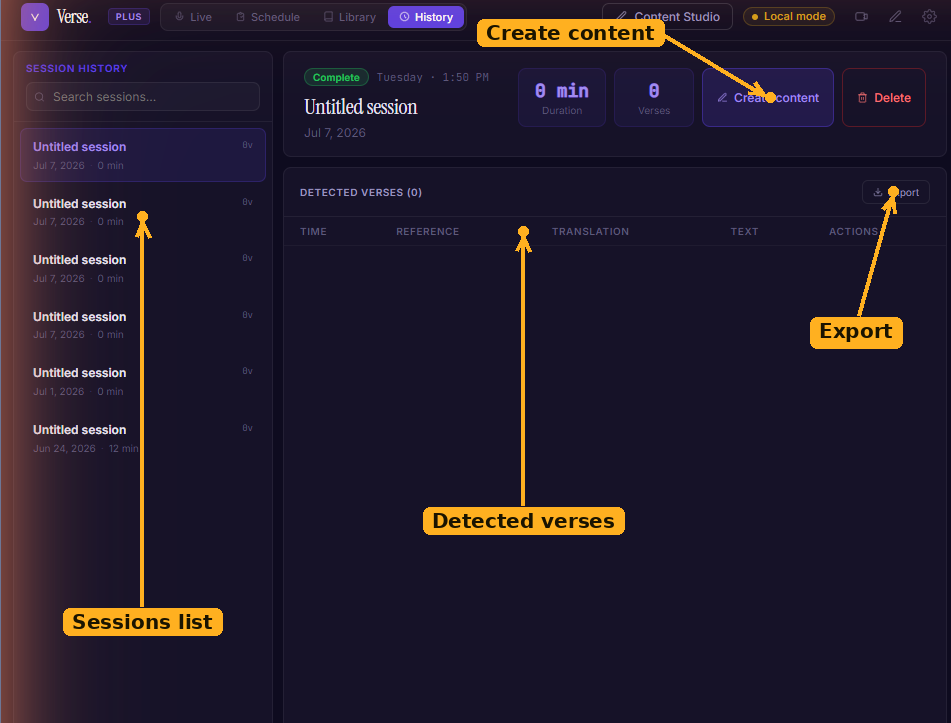
History: the sessions list on the left, the selected session's detail and detected-verses table on the right, and the Create content, Export, and Delete actions.
Browsing sessions
The left pane lists past sessions newest-first, with the date, duration, and how many verses and detections each one had. Search by title to find a specific service. Select one to see its detection timeline on the right.
Renaming a session
Click a session's title to edit it in place. Press Enter to save or Esc to cancel. Clearing the title restores the default "Untitled session" label.
Deleting a session
Click Delete session. Verse shows exactly what will be removed — the session, its detections, and any generated content tied to it — before you confirm. There's no undo, so the confirmation spells out the impact first.
Create content & export
- Create content opens Content Studio with this session selected.
- Export saves the session's state to a
.vrsefile you can archive or move to another machine; the matching Open State File… action (File menu) loads one back in.