AI detection & transcription
Verse can listen to the preaching and surface the scripture and songs being referenced — so the right verse is ready before you've finished typing it.
How listening works
In the Live Session, the Live Transcript panel starts and stops listening — click Start transcribing, or press Ctrl/Cmd+R to start and Ctrl/Cmd+. to stop. Verse transcribes speech two ways:
- Whisper :runs locally on your machine and works fully offline. This is the default. The Whisper models themselves are downloaded under Settings → Language.
- Fast transcription (online) :a faster online path that uses the browser's built-in speech recognition for low-latency captions, with Whisper still running in the background for accuracy. Toggle it under Settings → AI.
Set Offline mode under Settings → Audio to use Whisper only and never call out to the network.
AI detections
As the transcript flows, Verse matches it against your installed translations and song library. Matches appear in the AI detections panel on the lower right of the Live Session, each tagged with its source and a confidence level.
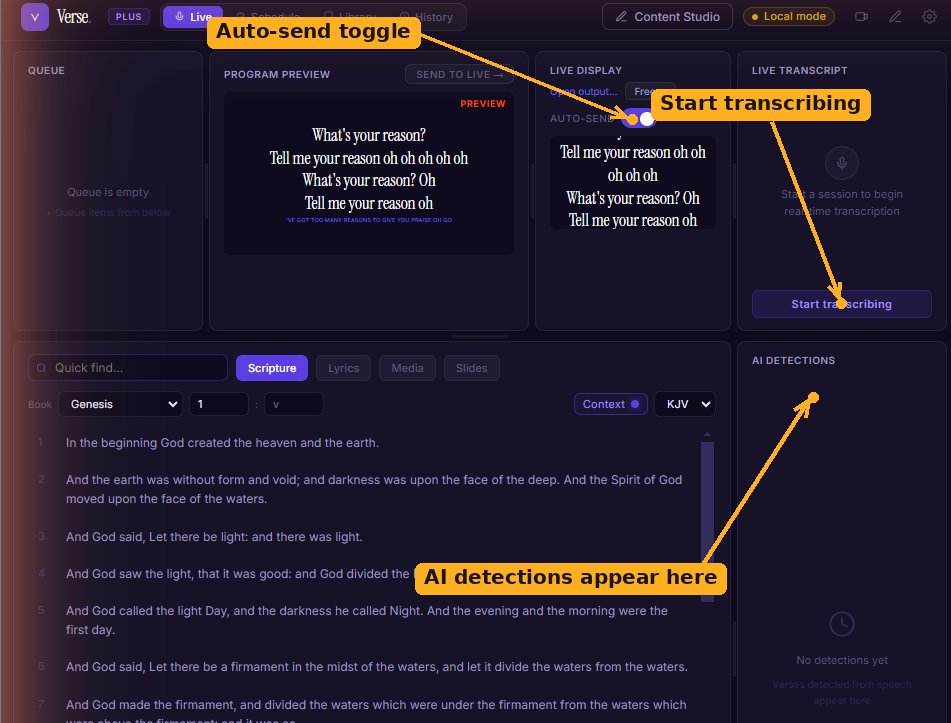
Start listening from the transcript panel; verses detected from the preaching then appear in the AI detections panel (shown here before a session has started).
- Click a detection to load it into the preview and highlight the matched verse on the tab.
- High-confidence detections can be sent automatically; lower-confidence ones wait for you to Approve them. Where that line sits is controlled by the detector thresholds.
Cloud vs. local detection
Detection can run against a cloud model or a local model via Ollama :useful when you want zero network dependency. Setting up the local path is covered in Local AI with Ollama.
Tuning sensitivity
Open Settings → AI (or use Audio → Detection Sensitivity… in the menu) to adjust the auto-send and preview thresholds and the matching window. If detections feel too eager, raise the thresholds; if it's missing references, lower them.