Scripture & the Bible Store
Verse keeps every translation on your machine, so scripture is instant and works without a network. You read scripture in the Library and manage translations in the Bible Store.
The Library
Open the Library from the top bar (or press Ctrl/Cmd+3). It's a three-column reader:
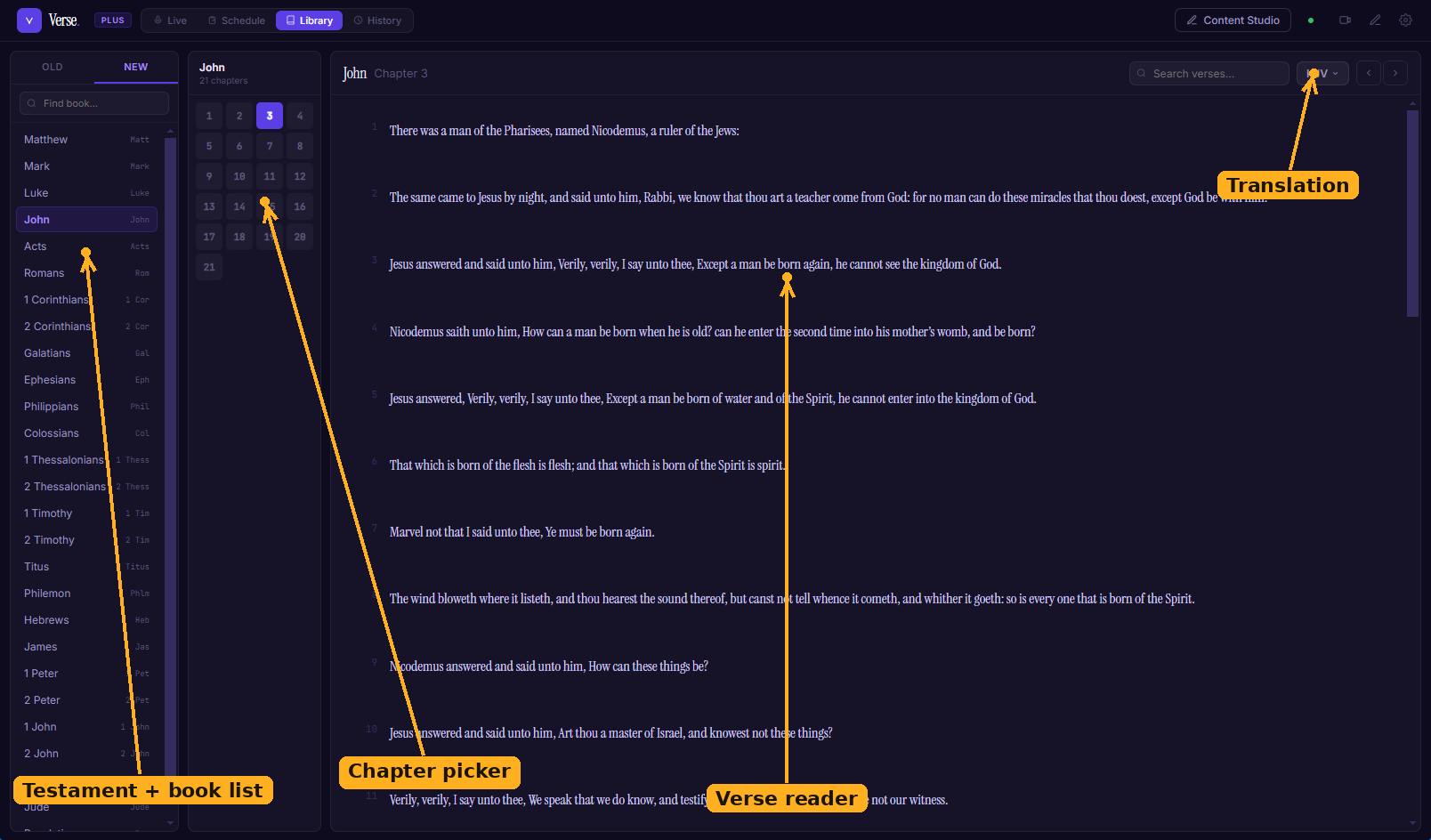
The Library reader: pick a testament and book on the left, a chapter next, and read in the main pane. The translation dropdown sits top-right.
- Pick a testament and book in the first column.
- Choose a chapter in the second.
- Read the chapter in the third. Hover a verse to reveal Send, Save, and Copy — Send puts it on the screen, Save bookmarks it, and Copy copies the text.
Switch translations with the dropdown at the top — only translations you've installed appear.
Finding scripture fast
The Quick Find box above the content tabs in the Live Session understands scripture references. Type one and Verse jumps straight to the passage and lights up the verse(s); type anything it doesn't recognise as a reference and it searches the text of your current translation instead.
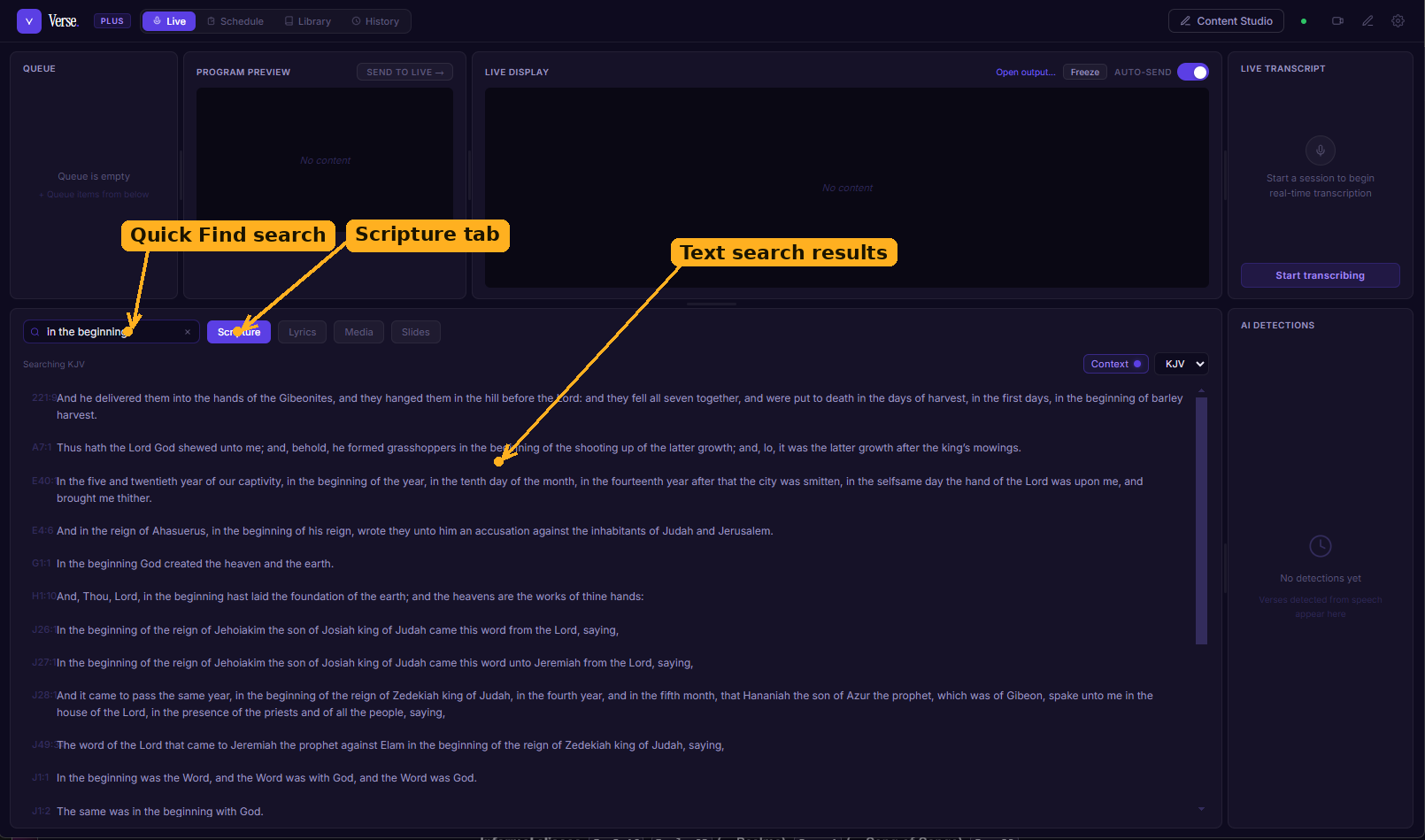
Quick Find on the Scripture tab: type text it doesn't read as a reference and Verse searches your current translation instead — here, every verse containing "in the beginning".
Almost any way you'd write a reference works:
- Full names & abbreviations :
John 3:16,Ps 23,1 Cor 13. - Informal aliases :
Jn 3:16,Psalm 23(→ Psalms),Song 1(→ Song of Songs),Rev 22. - Numbered books without the space :
1cor 13,1jn 4:7,1corinthians 1. - Just enough of the name :
Gen 1:1,Matt 5,Ephes 4:11. - Ranges & lists :
John 3:16-18orRomans 8:28,30-32(sorted and de-duplicated; a hyphen or an en-dash both work). - A dot instead of a colon :
John 3.16. - Book only :
Johnopens John 1.
If a reference doesn't quite land — a typo, or a chapter that doesn't exist like
John 99— Verse quietly searches for those words instead, so you're never left with an error. Clearing the box leaves you on whatever book and chapter you last landed on.
The Bible Store
The Bible Store (also available under Settings → Bible Store) is where you add and remove translations. Translations are grouped by language.
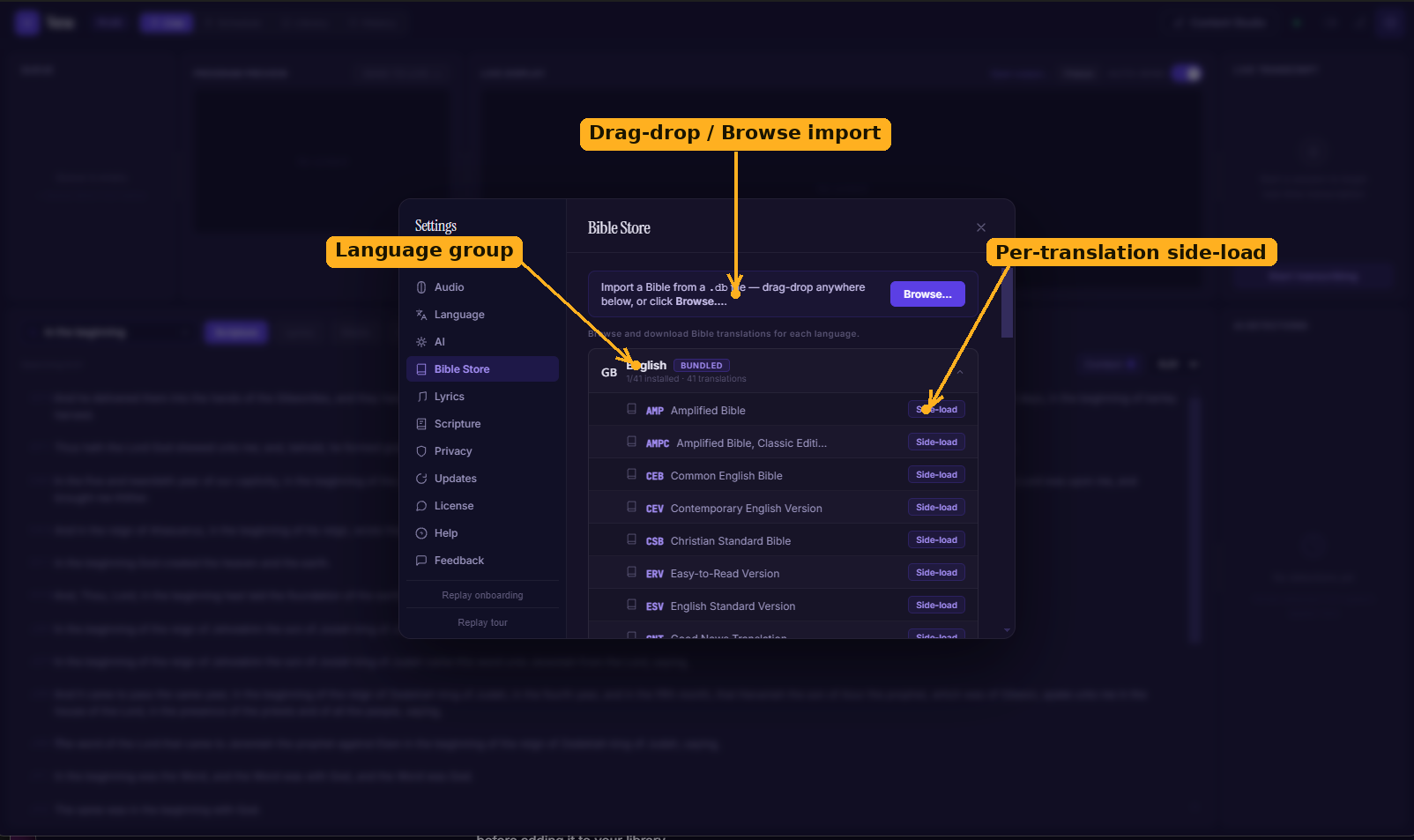
The Bible Store (Settings → Bible Store): translations are grouped by language; import a .db file with drag-drop or Browse, and add catalogued translations with the side-load button on each row.
- Bundled translations ship inside the installer and are ready immediately — public-domain translations such as KJV, ASV, BBE, and WEB. Each language group shows how many of its translations you have installed (for example, 1/41 installed).
- Side-load any other catalogued translation with the Side-load button on its row.
- Import your own by dragging a
.dbfile anywhere onto the panel, or click Browse…. Verse validates it before adding it to your library.
A bundled translation can't be uninstalled — it's part of the app. Translations you add yourself can be removed any time to reclaim disk space.
Choosing your default
Set the translation new cues use by default under Settings → Display → Primary translation. The Scripture tab and Library both follow this unless you change them on the spot.