The Live Session
The Live Session is where you run a service. It listens to what's being said, surfaces the scripture and lyrics in play, and lets you send any cue to the screen the moment you want it.
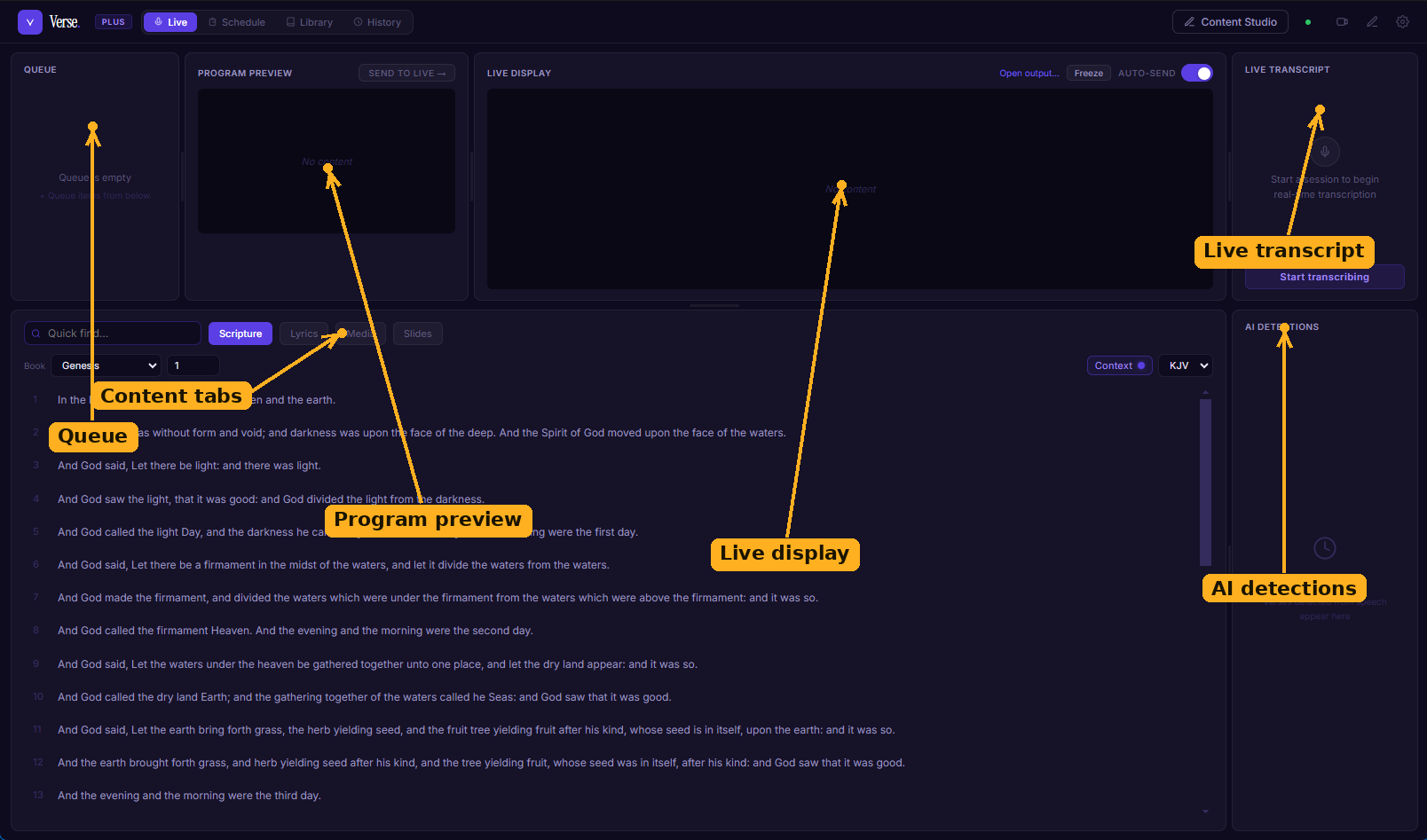
The Live Session at a glance: the Queue and Program Preview line up your next cue, the Live Display mirrors the screen, the Live Transcript drives listening, and detected verses surface in the AI detections panel.
The panels
- Live Transcript :start and stop listening here with Start transcribing. A rolling transcript of recognised speech appears as the service runs. See AI detection & transcription for how the listening works.
- Content tabs :below the panels sit four tabs: Scripture, Lyrics, Media, and Slides. This is where you find what you want to show.
- Program Preview :the cue you've lined up next. Nothing on the projector changes until you send it with Send to live.
- Live Display :what's on the screen right now. A Freeze toggle locks the live output so a stray click can't overwrite it, and an Auto-send toggle sits alongside it.
- Queue :cues you've lined up ahead of time. Click a row to send it live.
- AI detections :the panel on the lower right, listing verses detected from the preaching stream as the service runs.
Showing something
- Find what you want on a content tab (a verse, a song line, an image, or a slide).
- Press Enter — or hover the item and click Send — to load it into Program Preview.
- Press Enter again — or click Send to live :to put it on the screen.
Pressing Enter sends the current preview to live. It's ignored while you're typing in a search box or editing a song, so you can't fire a cue by accident.
Auto vs. manual
Under Settings → Display, the Cue approval mode decides what happens when a verse is detected:
- Manual (default) — detected verses land in the queue and AI detections list; you approve each one before it shows.
- Auto :detected verses flow straight to the preview, ready to send (or sent automatically, depending on your setup). Useful when one operator is running everything.
Quick find
The search box above the tabs is the fastest way to put scripture on screen. Type a reference and
Verse jumps to it and highlights the verses — John 3:16, Ps 23, or a range like
John 3:16-18 all work — then press Enter to send the verse to preview. Type a word or phrase
it doesn't recognise as a reference and it searches the text of your current translation instead; a
song title or a line of lyrics searches your song library. See
Finding scripture fast for every reference shorthand Verse accepts.